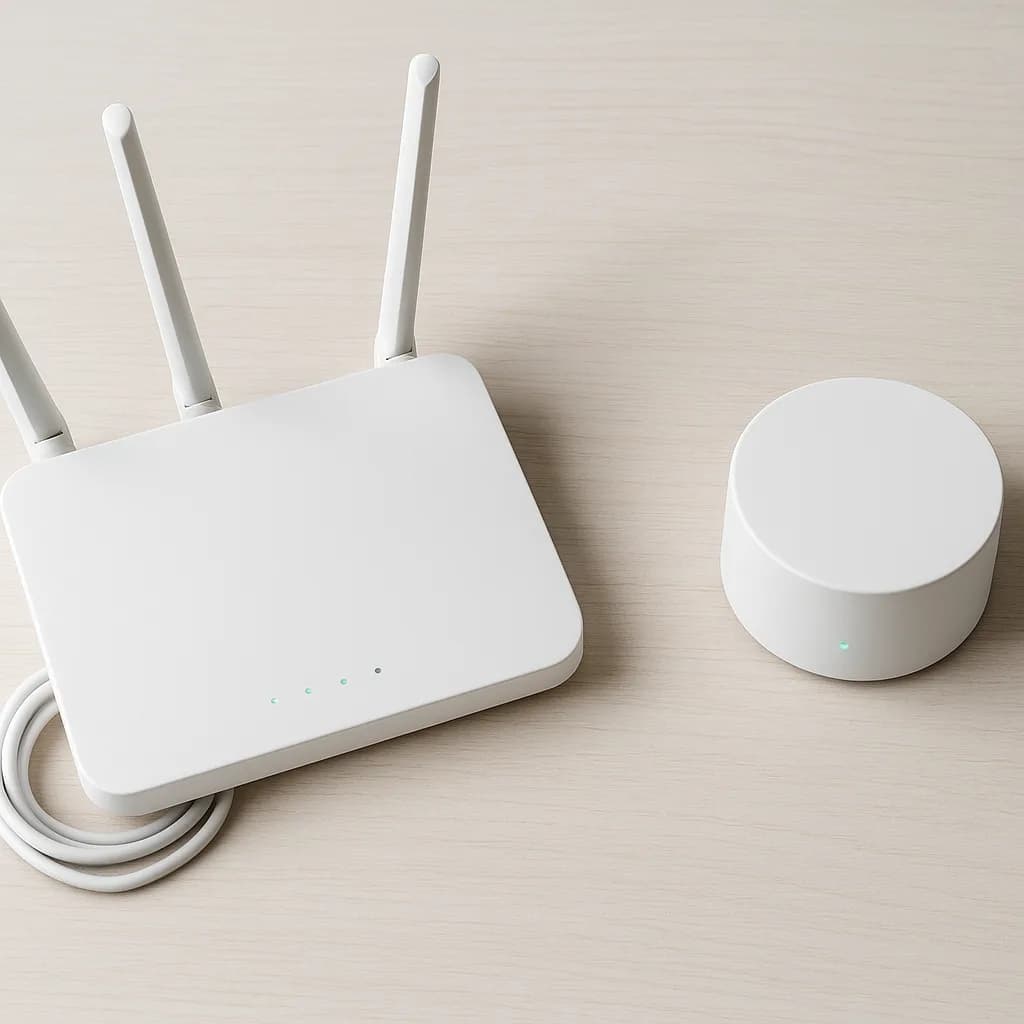
Your smart doorbell suddenly goes offline during an important delivery. Your smart thermostat can't connect to the app when you're trying to adjust the temperature from bed. Sound familiar? Wi-Fi connectivity issues are the bane of smart home enthusiasts everywhere, but most problems have surprisingly simple solutions.
Before you start unplugging everything or calling tech support, let's walk through the most effective troubleshooting steps that actually work. These methods have helped countless homeowners get their smart devices back online without the frustration of starting from scratch.
Start with the Basics: Power and Proximity
The first rule of smart home troubleshooting? Check the obvious stuff first. It sounds almost insulting to mention, but you'd be amazed how often a "broken" device simply needs a power cycle.
Unplug your problematic device for 30 seconds, then plug it back in. While it's restarting, also restart your router by unplugging it for the same amount of time. This simple reset resolves about 40% of connection issues because it clears temporary glitches in both devices.
Distance matters more than most people realize. Smart home devices typically need to be within 30-50 feet of your router for reliable connection, but walls, floors, and large appliances can cut that range significantly. If your device worked fine initially but started having issues, consider whether you've moved furniture, installed new appliances, or made other changes that might interfere with the signal path.
Router Settings That Kill Smart Device Connections
Modern routers come with security features that sometimes work too well, blocking legitimate smart home devices. Here are the most common culprits:
Band Steering: Many routers automatically switch devices between 2.4GHz and 5GHz bands. While this sounds helpful, older smart home devices often can't handle the switching and get confused. Try disabling band steering in your router settings, or manually connect your device to the 2.4GHz band, which offers better range for smart home gadgets.
AP Isolation: This security feature prevents devices on your network from talking to each other. It's great for guest networks but terrible for smart homes where devices need to communicate. Check your router's wireless settings and make sure AP isolation is disabled on your main network.
Firewall Overkill: Overly aggressive firewall settings can block the ports your smart devices need. Most devices work fine with standard settings, but if you've customized your firewall, try temporarily switching to default settings to see if that resolves the issue.
The Hidden Network Congestion Problem
Wi-Fi networks can get overcrowded, especially in apartment buildings or dense neighborhoods. Your router might be fighting for clear airspace with dozens of other networks.
Use a Wi-Fi analyzer app on your phone to see which channels are most congested in your area. If your router is set to automatically select channels, it might be choosing poorly. Manually switching to channels 1, 6, or 11 on the 2.4GHz band often provides better performance for smart home devices.
The 5GHz band has more available channels and typically less congestion, but remember that many smart home devices can only use 2.4GHz. This is particularly true for smart security cameras and sensors that prioritize range over speed.
Device-Specific Troubleshooting Strategies
Different types of smart devices fail in predictable ways. Smart speakers and displays often have connection issues after software updates, try saying "disconnect from Wi-Fi" followed by reconnecting through the setup process.
Smart plugs and switches frequently lose connection when your internet goes down, even briefly. Unlike phones or computers, they don't always automatically reconnect when service returns. A quick power cycle usually fixes this.
Smart thermostats are particularly sensitive to voltage fluctuations. If yours keeps disconnecting, check that it's getting consistent power. Some models require a "C-wire" for stable operation, especially if you're running heating and cooling simultaneously.
When to Factory Reset (And When Not To)
Factory resetting should be your last resort, not your first instinct. You'll lose all your custom settings, schedules, and scene configurations. More importantly, you'll have to go through the initial setup process again, which can be time-consuming for complex devices.
Consider a factory reset only when you've tried everything else, when you're getting error messages about corrupted firmware, or when you suspect the device's software is genuinely corrupted.
Before resetting, document your current settings with screenshots. This makes rebuilding your configuration much faster.
Mesh Networks: Solution or New Problem?
Mesh Wi-Fi systems solve coverage problems but can create new issues for smart home devices. Some devices get confused when handed off between mesh nodes, leading to intermittent connections.
Most mesh systems let you assign specific devices to specific nodes. Try manually connecting problematic devices to your strongest mesh point and disabling automatic switching for those devices.
If you're using multiple brands of networking equipment (like combining your ISP's router with a mesh system), you might have double-NAT issues. This creates connection problems for devices that need to communicate with external servers.
Monitoring Your Network Health
Smart home reliability improves dramatically when you can spot problems before they become frustrating. Many modern routers include network monitoring tools that show which devices are connecting and disconnecting frequently.
Keep a simple log of when devices go offline. Patterns often emerge, maybe your smart lights disconnect every Tuesday around 3 AM when your router automatically updates its firmware, or your smart kitchen appliances struggle when the microwave is running.
Understanding these patterns helps you address root causes instead of just treating symptoms.
Prevention: Building a More Stable Smart Home Network
The best troubleshooting is preventing problems in the first place. When buying new smart home devices, check their Wi-Fi requirements before setup. Some newer devices require Wi-Fi 6, while others work better on older standards.
Spread out your smart home installations over time. Adding 10 new devices in one weekend can overwhelm your network's ability to manage connections properly. Your router needs time to learn each device's communication patterns.
Keep device firmware updated, but be strategic about when you update. Avoid updating multiple devices simultaneously, and don't update right before you leave for vacation or during important events.
FAQ
Why do my smart home devices keep disconnecting from Wi-Fi?
The most common causes are insufficient Wi-Fi signal strength, router settings that interfere with device communication, or network congestion. Start by checking if the devices are within good range of your router and ensure your router isn't using aggressive security settings like AP isolation that prevent smart devices from connecting properly.
Should I use 2.4GHz or 5GHz for my smart home devices?
Most smart home devices work better on 2.4GHz because it offers longer range and better wall penetration, even though it's slower. Many older smart devices can only connect to 2.4GHz anyway. Reserve 5GHz for devices that need high bandwidth, like streaming devices or smart TVs.
How many smart devices can my router handle?
Most modern routers can technically handle 50+ devices, but practical performance degrades well before reaching that limit. If you notice frequent disconnections with more than 20-30 smart devices, consider upgrading to a mesh system or a router specifically designed for smart homes with better device management capabilities.
Is it worth getting a separate network for smart home devices?
Creating a dedicated IoT (Internet of Things) network can improve both security and performance. Many routers allow you to set up a guest network specifically for smart devices, which isolates them from your main devices while still allowing you to control them through apps. This setup also makes troubleshooting easier since you can quickly identify whether issues are device-specific or network-wide.